User Interface
Once installed, you’ll have the four core modules:
PGSQL, INFRA, NODE, and ETCD on current node.
You can access WebUI services from the following Ports directly (not recommended for prod). Or use local / public Domain Names to access them via Nginx Portal. SSL Certs can only be used with domains.
| Component | Port | Domain | Comment | Public Demo |
|---|---|---|---|---|
| Nginx | 80/443 |
h.pigsty |
Portal, Repo, HAProxy Admin | home.pigsty.io |
| Grafana | 3000 |
g.pigsty |
Grafana Dashboards | g.pgsty.com |
| Prometheus | 9058 |
p.pigsty |
Prometheus Web UI | p.pigsty.io |
| AlertManager | 9059 |
a.pigsty |
Alert Management | a.pigsty.io |
You can access the default PostgreSQL database (meta) @ default port 5432 via the following users and corresponding PGURL:
PostgreSQL
For personal usage, you could just use the default superuser and IP:Port to access PostgreSQL:
DBSU
The default database superuser is dbuser_dba, with DBUser.DBA as default password, use your own if changed.
| Username | dbuser_dba |
pg_admin_username |
|---|---|---|
| Password | DBUser.DBA |
pg_admin_password |
CLI
The built-in psql CLI is already configured with .pgpass and .pg_service.conf for the admin user
GUI
To access your database with graphical interface, you can use your favorite GUI tools, we also have some built-in templates.
| Name | Description | Pigsty Support |
|---|---|---|
| PgAdmin | Official PostgreSQL administration tool | Built-in Docker template, OSS |
| Supabase Studio | Fancy 3rd party UI for PostgreSQL management | Built-in Docker template, OSS |
| PgWeb | Lightweight web-based PostgreSQL client | Built-in Docker template, OSS |
| Bytebase | Schema migration tool with a good GUI | Built-in Docker template, OSS |
| DataGrip / IntelliJ | Professional database IDE with powerful features | Commercial / Community |
| Navicat | Popular commercial database management tool | Commercial |
| DBeaver | Open-source universal database GUI | OSS |
Defaults
You can define business Database and User. These config templates has some pre-defined examples for your reference.
For example, the default meta config template has pre-defined a meta database with Pigsty CMDB schema (optional) and a vector extension.
It defines dbuser_meta as business admin user with DDL privilege, and a dbuser_view as read-only viewer user.
Which means you can also access the meta database with these two users:
Production
To use HA PostgreSQL cluster in production environment, you’ll need to read the following documents to proceed:
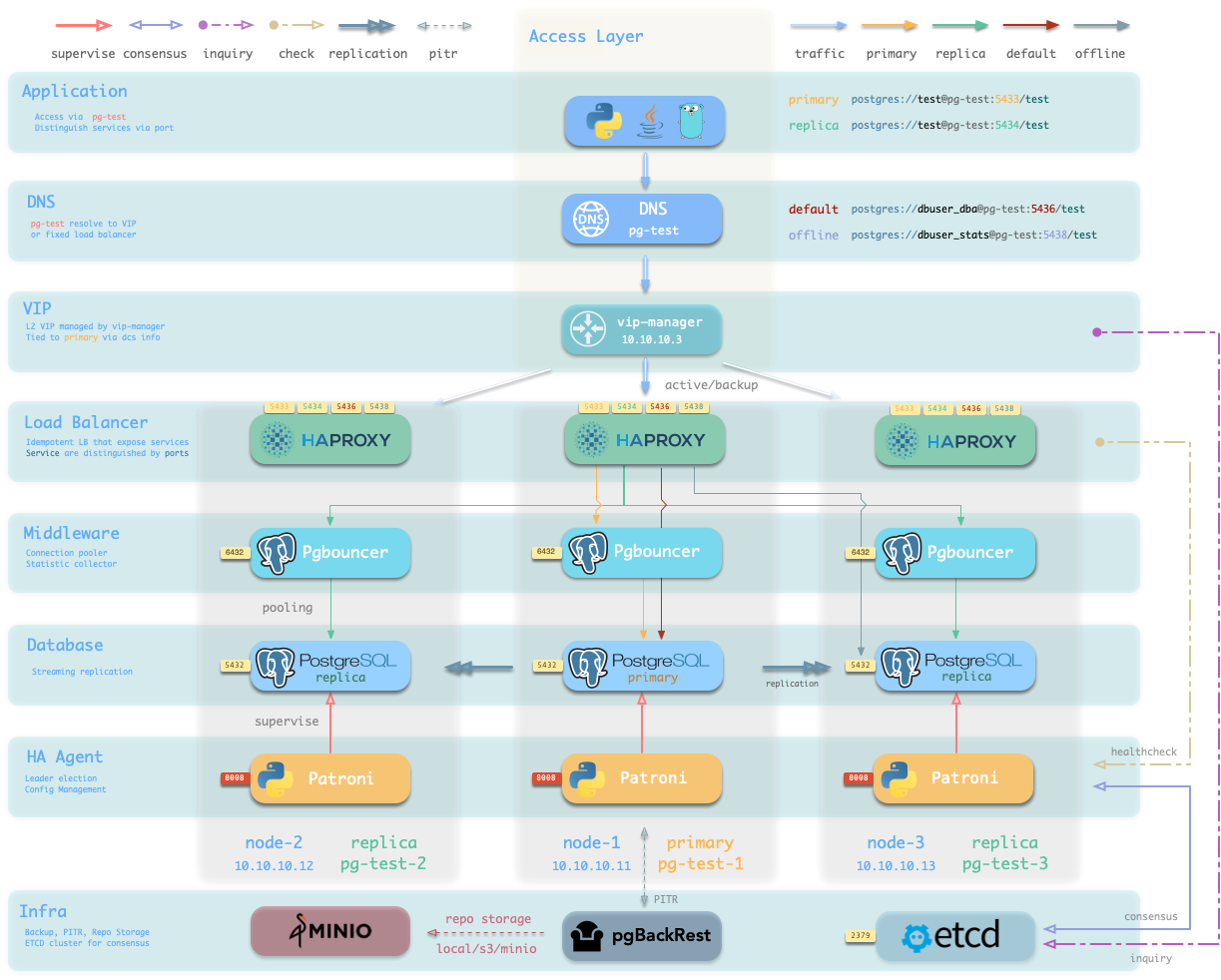
In that case, your traffic is usually distributed by haproxy and pooled by pgbouncer before reaching the database.
Grafana
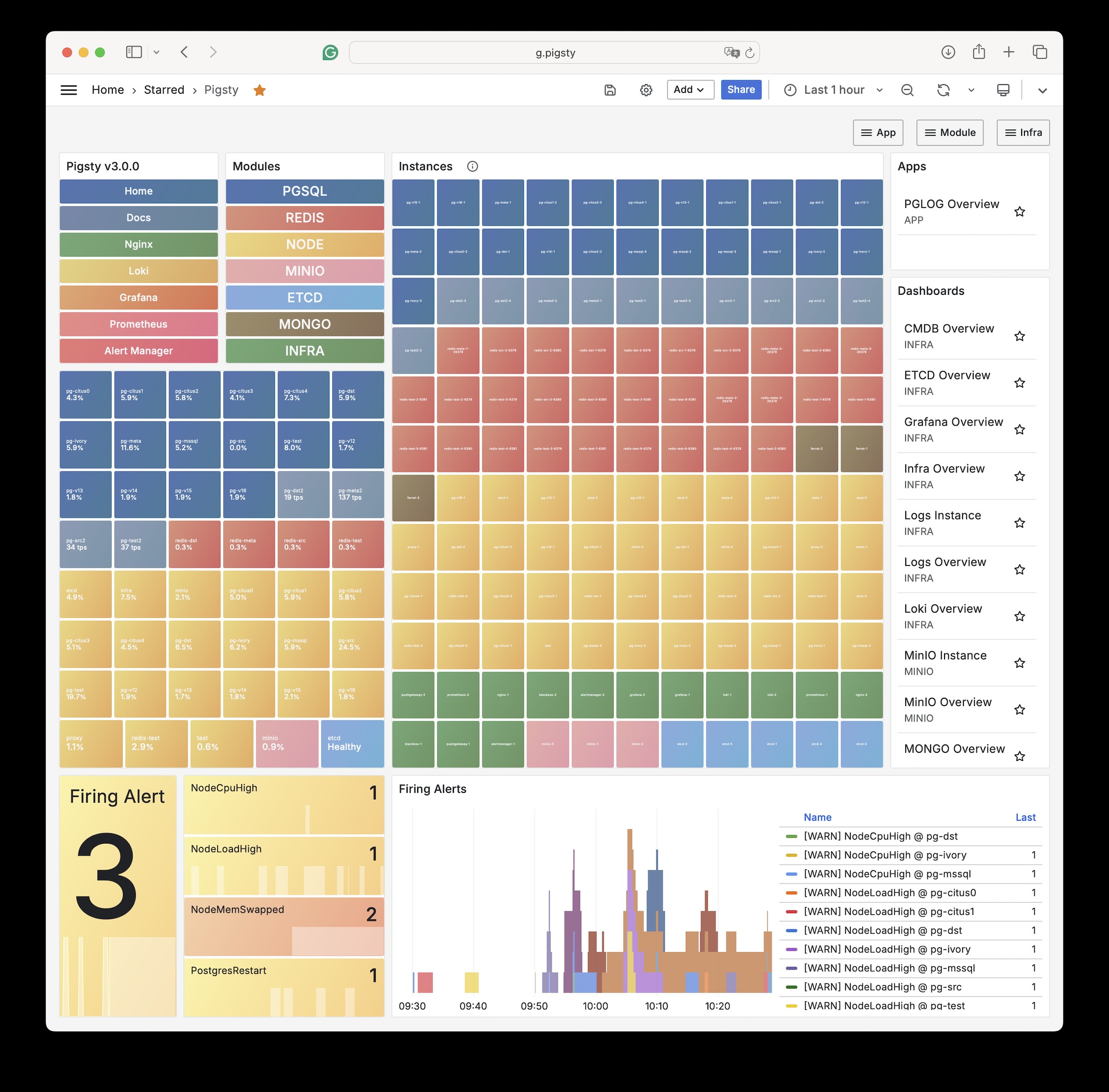
Grafana is the platform for monitoring and observability, it listens on port 3000 by default:
- http://10.10.10.10:3000 (replace with your IP)
Pigsty support static local domain (fake) for web components, you can access Grafana via http://g.pigsty through Nginx
It’s advised to use domain names, Since you can expose all services via Nginx with domain names, and use SSL certs for them.
Default credential: admin:pigsty. If you have changed the default credentials, use your own.
| Username | admin |
grafana_admin_username |
|---|---|---|
| Password | pigsty |
grafana_admin_password |
You can check our public demo site to see what it looks like: https://g.pgsty.com
Pigsty issues self-signed SSL certs for local static domain names, but you’ll have to trust the self-signed CA in your browser.
Pigsty has support for using real domain names and SSL certs
Just replace domain entries in infra_portal, and use make cert to apply for real certs for free